Convert STL to GLB Online
Convert STereoLithography (STL) files to GL Transmission Format Binary (GLB), entirely in your browser. No upload, no sign-up. Your files never leave your device.
Drop your STL file here
or click to browse from your computer (up to 100 MB)
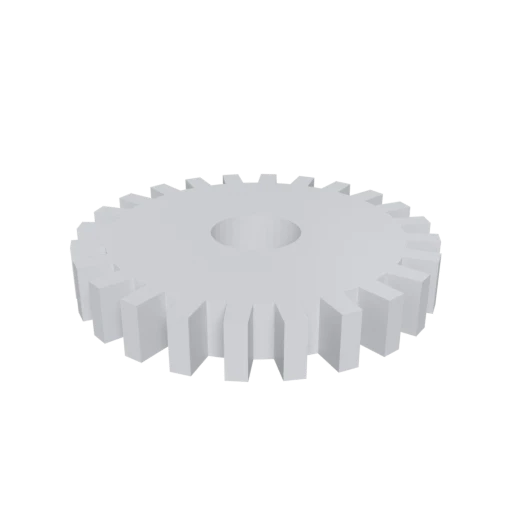
Simple mechanical part, a typical STL use case for 3D printing.
STL describes only surface geometry with no standard support for color, texture, or materials. GLB supports full PBR materials and textures.
STL stores a flat list of triangles with no hierarchy or motion data. GLB adds node hierarchies, skeletal animation, and morph targets.
STL was designed for 3D printing and CAD manufacturing. GLB is optimized for fast delivery and rendering in web, AR, and real-time applications.
Also convert from STL
Other ways to get GLB
How to Convert STL to GLB
One file is all you need. No companion files, no textures to manage.
Upload STL
Drag and drop or select your .stl file. STL is a single-file format with no external dependencies; one file is all you need.
Processing
Conversion runs entirely in your browser. The triangle mesh is extracted from your STL and repackaged into the GLB format with a default material applied.
Download GLB
Get you ready to use GLB file immediately. Your geometry is now in a web friendly format ready for browsers, AR viewers, and real time engines.
Why convert STL to GLB?
STL files were originally designed for stereolithography and 3D printing, storing only raw triangulated surface geometry; vertices, face normals, and nothing else. This makes them poorly suited for modern use cases like web visualization, augmented reality, or real-time 3D applications where appearance, structure, and interactivity matter. Users looking to take a 3D model beyond manufacturing and into digital experiences will quickly hit the limits of what STL can offer.
Converting to GLB solves these limitations by packaging everything into a single, compact binary file built for modern rendering pipelines. GLB is the binary form of glTF, an open standard maintained by the Khronos Group and widely adopted by companies like Microsoft, Adobe, and Meta. It supports physically based rendering materials, textures, scene hierarchies, and animation, making it the go to format for delivering 3D assets efficiently across platforms. Where STL gives you a bare geometric shell, GLB gives you a complete, ready to render 3D asset.
Key advantages of GLB over STL
GLB supports physically based rendering for realistic, consistent visuals across engines.
GLB can embed texture images directly, while STL has no texture capability at all.
GLB supports skeletal animation and morph targets, whereas STL is strictly static geometry.
GLB organizes objects in a parent-child node graph instead of STL's flat triangle list.
GLB's optimized binary format minimizes file size and runtime processing overhead.
GLB bundles geometry, materials, and textures into a single file with no external dependencies.
STL vs GLB
| Feature | STL | GLB |
|---|---|---|
| File structure | Flat triangle list | Binary container with scene graph |
| Materials | None | PBR metallic-roughness |
| Textures | None | Embedded (JPEG, PNG, KTX2) |
| Animation | Not supported | Full skeletal & morph targets |
| Compression | None | Draco, meshopt, KTX2 |
| Vertex sharing | No (duplicated per triangle) | Yes (indexed geometry) |
| Primary use | 3D printing | Web, AR, game engines |
When to Use Each Format
Use STL when
- Sending files directly to 3D printers or slicers
- Working with CNC or rapid prototyping software that expects STL
- You only need raw triangle geometry with no materials
- Maximum compatibility with manufacturing tools is required
Use GLB when
- Viewing or sharing a 3D-printed model on the web or in AR
- You want to add materials, colors, or textures to an STL model
- File size matters and you want indexed vertices and Draco compression
- Embedding the model in a website, app, or product configurator
Known Limitations
STL has no material or texture data, so the GLB will have a default gray material unless you add materials afterward
STL vertices are duplicated per triangle. The converter merges coincident vertices to create indexed geometry, which may change vertex count
Non-standard vendor color extensions in STL (VisCAM, Magics) may not be recognized
STL has no units. If the model was authored in millimeters, it may appear tiny in GLB viewers that assume meters
STL to GLB FAQ
Will my STL model have materials in the GLB?
STL files contain no material data, so the converted GLB will have a plain default material. You can add PBR materials and textures afterward using a 3D editor like Blender.
Why does the vertex count change after conversion?
STL stores three separate vertices for every triangle, even when triangles share a corner. The converter merges these duplicate vertices into shared, indexed geometry. This is normal and reduces file size without changing the visual shape.
Can I compress the GLB to make it smaller?
Yes. Draco compression alone can reduce mesh data by up to 95%. Since STL models are geometry only, Draco is particularly effective. Polyforge can apply Draco compression as part of the conversion.
My model is the wrong size in the viewer. What happened?
STL files have no unit information. If your model was designed in millimeters (common in 3D printing), the coordinates will be interpreted as meters in glTF, making the model appear 1000 times too large. Scale by 0.001 to fix it.