Convert GLB to OBJ Online
Convert GL Transmission Format Binary (GLB) files to Wavefront OBJ, entirely in your browser. No upload, no sign-up. Your files never leave your device.
Drop your GLB file here
or click to browse from your computer (up to 100 MB)
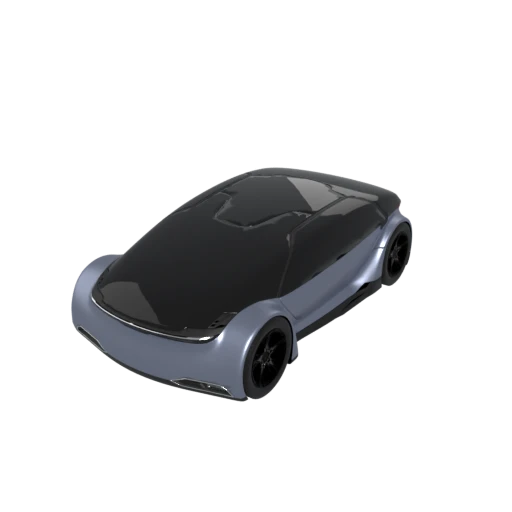
Detailed car model with PBR materials and textures.
OBJ is supported by virtually every 3D application ever made, from Blender and Maya to SolidWorks and Fusion 360. Converting from GLB gives you a file that opens anywhere without plugins or special importers.
The conversion produces both an .obj geometry file and a companion .mtl material file, packaged together in a single ZIP download. Material properties like color, specularity, and opacity are preserved.
OBJ stores geometry as plain ASCII text, making it easy to inspect, debug, or edit with any text editor. Each vertex, normal, and face is written on its own line in a straightforward, well documented syntax.
Also convert from GLB
Other ways to get OBJ
How to Convert GLB to OBJ
Drop your GLB file and get an OBJ with materials in seconds.
Upload GLB
Drag and drop or select your .glb file. GLB is a self-contained binary format so a single file is all you need.
Processing
Conversion runs entirely in your browser. Geometry is extracted to OBJ format and material properties are written to a companion MTL file. Your data never leaves your device.
Download ZIP
Get a ZIP archive containing both the .obj and .mtl files. Extract the archive and import the .obj file into your preferred 3D application; it will automatically locate the bundled .mtl.
Why convert GLB to OBJ?
GLB is the binary container for glTF 2.0, an open standard maintained by the Khronos Group and optimized for real time rendering in browsers, AR viewers, and game engines. It bundles geometry, PBR materials, textures, animations, and scene hierarchy into one compact binary file. However, many traditional 3D workflows, CAD tools, and legacy pipelines still rely on simpler interchange formats. When you need to hand a model to a CNC operator, feed it into a scientific visualization tool, or process it with a custom script, OBJ is often the most practical choice.
Wavefront OBJ was introduced by Wavefront Technologies in the 1980s as part of their Advanced Visualizer software. It stores geometry as plain ASCII text with one directive per line: vertices (v), texture coordinates (vt), normals (vn), and polygonal faces (f). Material definitions live in a separate .mtl companion file using the Phong reflection model. Despite its age, OBJ remains one of the most widely supported 3D formats in existence. Its simplicity makes it trivially parseable by scripts and custom tools, and its lack of proprietary features means it works the same way in every application that reads it.
Key advantages of OBJ over GLB
OBJ is recognized by virtually every 3D modeling, CAD, and visualization application available today.
Geometry is stored as readable ASCII, making files easy to inspect, diff, and edit with standard text tools.
The line based syntax requires no specialized library, letting scripts in any language read and write OBJ files with minimal effort.
The format has remained unchanged for decades, so files written today will remain readable far into the future.
The companion .mtl file keeps material definitions independent from geometry, allowing either to be swapped or edited without affecting the other.
GLB vs OBJ
| Feature | GLB | OBJ |
|---|---|---|
| File structure | Single binary file | Text .obj + .mtl + textures |
| Animation | Full skeletal & morph targets | Not supported |
| Materials | PBR (metallic-roughness) | Phong / Lambert only |
| Textures | Embedded in binary | External image files |
| Compression | Draco / meshopt support | None (plain text) |
| File size | Compact binary | Larger (ASCII text) |
| Web delivery | Optimized for web & AR | Not designed for web |
When to Use Each Format
Use GLB when
- Delivering 3D content on the web, in AR, or in game engines
- You need a single self-contained file with embedded textures
- File size and load performance matter
- You want PBR materials and animation in one package
Use OBJ when
- Importing into legacy or CAD software that lacks glTF support
- You need a human-readable, text-editable geometry file
- Feeding geometry into scripts or custom processing pipelines
- Exchanging static meshes with the widest possible tool compatibility
Known Limitations
PBR materials are downgraded to a Phong approximation, so metallic and roughness values are lost
Animations are discarded entirely because OBJ has no animation support
Scene hierarchy (parent/child relationships) is flattened into a single mesh list
Embedded textures are extracted as separate files, requiring the companion .mtl to reference them correctly
GLB to OBJ FAQ
Does converting GLB to OBJ preserve textures?
Texture images are extracted from the GLB binary and saved as separate files alongside the .obj and .mtl. The .mtl file references them, so most applications will load them automatically as long as all files stay in the same folder.
Can I convert animated GLB files to OBJ?
The geometry from the default pose is exported, but all animation data (skeletal, morph targets, keyframes) is discarded. OBJ is a static geometry format and has no concept of animation.
Will the file size increase after conversion?
Usually yes. GLB uses a compact binary encoding and optional Draco compression, while OBJ stores vertices and faces as ASCII text. A 2 MB GLB can easily become a 6 to 10 MB OBJ.
Is the conversion lossless?
Geometry (vertices, normals, UVs) is preserved exactly. Material fidelity depends on the complexity of the original PBR setup. Simple materials convert cleanly, while advanced effects like clearcoat or transmission have no OBJ equivalent.
Two Material Models, One Incompatible Gap
GLB files use the glTF 2.0 material system, which is built on physically based rendering (PBR). Every material is described through the metallic-roughness model: a base color, a metallic factor (0.0 for dielectric, 1.0 for metal), a roughness factor (0.0 for mirror smooth, 1.0 for fully diffuse), and optional texture maps for each. The metallic and roughness values are packed into a single texture, with the blue channel carrying metalness and the green channel carrying roughness. This model simulates how light actually interacts with surfaces. Metals reflect the environment with tinted specular reflections. Dielectrics reflect white light and scatter it through subsurface diffusion. The separation is physically motivated and produces predictable results across renderers.
OBJ's companion MTL file uses the Phong reflection model, designed by Bui Tuong Phong in 1975. It breaks surface appearance into three components: ambient color (Ka), diffuse color (Kd), and specular color (Ks), plus a specular exponent (Ns) that controls highlight tightness. There is no concept of metalness. There is no roughness parameter. The model treats all surfaces the same way, varying only the balance of ambient, diffuse, and specular terms. It was designed for visual plausibility on 1970s hardware, not for physical accuracy.
These two systems describe materials in fundamentally different terms. Converting between them requires approximation, and some information simply has no destination.
What the Conversion Keeps and What It Drops
Geometry transfers perfectly. Vertices, normals, UV coordinates, and face topology survive the conversion without any change. The losses are all on the material side.
- Base color becomes diffuse color. The GLB base color (baseColorFactor or baseColorTexture) maps to Kd in the MTL file. This is the closest match between the two systems, and it transfers well for non-metallic surfaces. For metals, the base color in PBR represents specular reflectance tint, not diffuse color, so the visual meaning changes.
- Metalness is discarded. MTL has no equivalent property. A polished steel surface and a gray plastic surface might produce nearly identical MTL definitions, even though they look completely different under PBR lighting. The converter cannot preserve this distinction.
- Roughness becomes a specular exponent approximation. Some converters map roughness to the Ns (specular exponent) parameter, typically inverting and scaling the value. A roughness of 0.0 might become Ns 1000 (tight highlight), while 1.0 becomes Ns 1 (broad, soft highlight). This is a rough heuristic. The visual result depends on the renderer reading the MTL file.
- Normal maps may transfer. MTL supports bump maps (bump or map_bump), and some tools interpret them correctly. But there is no standard for normal maps in the MTL spec. Compatibility varies by application.
- Emissive, occlusion, clearcoat, sheen, transmission: gone. GLB supports emissive maps (emissiveFactor, emissiveTexture), ambient occlusion (often baked into the occlusionTexture), and extensions like KHR_materials_clearcoat, KHR_materials_sheen, and KHR_materials_transmission. None of these have any representation in the MTL format. They are silently dropped.
The Metal Problem in Detail
The biggest visual difference after conversion usually involves metallic surfaces. In PBR, metals and dielectrics behave differently at a physical level. Metals have no diffuse component. All their visible color comes from specular reflection, tinted by the base color. Gold reflects gold-tinted light. Copper reflects copper-tinted light. The surrounding environment is visible in the reflection.
In the Phong model, every surface has a diffuse component. When a converter writes a metallic surface into MTL, it typically puts the base color into Kd (diffuse). The surface then renders as a flat, matte color instead of a reflective metal. The specular channel (Ks) might receive some color information, but without environment reflections and energy conservation, the result looks like painted plastic rather than polished metal.
For models that are mostly dielectric (wood, fabric, stone, plastic), the conversion looks reasonable. The diffuse color carries most of the visual information, and the loss of roughness nuance is subtle. For models with mixed metallic and dielectric surfaces, expect the metallic parts to look wrong.
Practical Strategies for Better Results
You cannot avoid the material downgrade, but you can manage it.
- Bake lighting before converting. If the OBJ will be used in a renderer that does not support advanced materials anyway (a CAD viewer, a CNC tool, a visualization script), bake your PBR lighting into the diffuse texture before export. Open the GLB in Blender, bake a combined or diffuse pass to texture, and assign that baked texture as the base color. The resulting OBJ will look closer to the intended appearance because the lighting information lives in the texture rather than the material parameters.
- Separate metallic and non-metallic parts. If your model has distinct metal and non-metal regions, consider splitting them into separate material groups before conversion. You can then manually adjust the Ks (specular color) and Ns (specular exponent) values in the MTL file for the metallic parts, giving them brighter specular highlights.
- Edit the MTL file after conversion. MTL is plain text. Open it in any text editor. Increase Ks values for surfaces that should look shiny. Raise Ns for tighter specular highlights. Add map_Ks entries pointing to a specular texture if you have one. This manual step takes minutes and can noticeably improve the result in renderers that support full Phong shading.
- Test in the target application. Every OBJ importer interprets MTL slightly differently. Some ignore Ks entirely. Some apply their own default lighting. Open the converted file in whatever software will actually consume it and evaluate the result there, not in a general purpose viewer.
When OBJ Is Still the Right Choice
Despite the material limitations, OBJ remains the right output format in specific situations. Legacy software that predates glTF support often handles OBJ without issues. Scientific visualization tools, CNC toolpath generators, and custom geometry processing scripts frequently expect OBJ input. The format's plain text structure makes it trivially parseable in any programming language, from Python to shell scripts.
If your downstream workflow treats materials as secondary (3D printing, collision mesh extraction, geometric analysis), the PBR data loss is irrelevant. The geometry arrives intact, and that is what matters. For workflows where material fidelity is the priority, consider keeping the GLB and using a viewer or engine that supports glTF natively. The conversion to OBJ is a trade: maximum compatibility for reduced material accuracy. Knowing exactly what changes lets you make that trade with clear expectations.