Convert GLB to USDZ Online
Convert GL Transmission Format Binary (GLB) files to Universal Scene Description (USDZ), entirely in your browser. No upload, no sign-up. Your files never leave your device.
Drop your GLB file here
or click to browse from your computer (up to 100 MB)
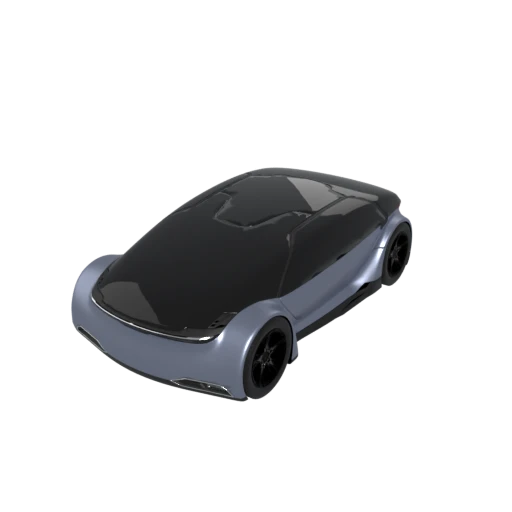
Detailed car model with PBR materials and textures.
USDZ is the native format for AR Quick Look on iPhone, iPad, and Apple Vision Pro. Converting your GLB lets users place and interact with 3D models in their real environment directly from Safari.
USDZ packages geometry, materials, and textures into one self-contained file with no external dependencies, making it simple to share via email, messaging apps, or embed on websites.
USDZ is supported natively across iOS, iPadOS, macOS, and visionOS without any third-party apps. Models open directly in Files, Safari, Messages, and Mail.
Other ways to get USDZ
How to Convert GLB to USDZ
Drop your GLB file and get an AR-ready USDZ in seconds.
Upload GLB
Drag and drop or select your .glb file. GLB is a self-contained binary format so a single file is all you need.
Processing
Conversion runs entirely in your browser. Geometry, materials, and textures are repacked into Apple's USDZ format. Your data never leaves your device.
Download USDZ
Get your USDZ file immediately. Open it on any Apple device to preview in AR, or embed it on a webpage to let visitors experience your model in augmented reality.
Why convert GLB to USDZ?
GLB is the binary container for glTF 2.0, an open standard maintained by the Khronos Group and widely used for real time 3D on the web, in game engines, and across Android AR platforms. It excels at delivering compact, GPU-optimized assets. However, Apple's ecosystem relies on a different format for augmented reality. AR Quick Look, the built-in AR viewer on iPhone, iPad, and Apple Vision Pro, requires USDZ files. If you want your 3D models to be viewable in AR on Apple devices or embeddable on web pages with an AR call-to-action, converting GLB to USDZ is the necessary step.
USDZ was introduced by Apple and Pixar in 2018 as a streamlined packaging of Pixar's Universal Scene Description (USD) format. It is an uncompressed ZIP archive containing a USD scene file along with any referenced textures and assets. The uncompressed design allows the system to memory-map the file and read its contents directly without extraction, which makes loading fast and memory-efficient on mobile devices. USDZ supports meshes, PBR materials, textures, animations, and cameras. Beyond AR Quick Look, USDZ is the primary 3D content format for visionOS apps on Apple Vision Pro, making it essential for anyone building spatial computing experiences.
Key advantages of USDZ over GLB
USDZ works with Apple AR Quick Look out of the box, enabling users to preview 3D objects in augmented reality on any Apple device.
iOS, iPadOS, macOS, and visionOS can open USDZ files natively without installing additional software.
USDZ bundles all assets into a single uncompressed archive, eliminating broken texture references or missing companion files.
USDZ files can be linked directly from web pages to trigger AR Quick Look in Safari on Apple devices.
Apple Vision Pro uses USDZ as its primary 3D content format for visionOS apps and experiences.
GLB vs USDZ
| Feature | GLB | USDZ |
|---|---|---|
| File structure | Binary glTF container | Uncompressed ZIP with .usdc + textures |
| Animation | Skeletal, morph, keyframe | Skeletal (UsdSkel), morph, keyframe |
| Materials | PBR metallic-roughness (many extensions) | UsdPreviewSurface (simplified PBR) |
| Textures | JPEG, PNG, KTX2, WebP | JPEG, PNG, AVIF, OpenEXR |
| Compression | Draco, meshopt, KTX2 | None (zero-compression ZIP) |
| Platform | Cross-platform (web, mobile, desktop) | Apple ecosystem (iOS, macOS, visionOS) |
| File size | Compact (with compression) | 5 to 8x larger than equivalent GLB |
When to Use Each Format
Use GLB when
- Building for the web, Android, or cross-platform 3D experiences
- You need the smallest possible file size with Draco or meshopt compression
- Your materials use advanced glTF extensions (clearcoat, transmission, sheen)
- You want the broadest tool and engine support
Use USDZ when
- Targeting Apple AR Quick Look on iPhone, iPad, or Vision Pro
- Sharing 3D previews via iMessage, Safari, or Apple Mail
- Building AR product visualization for e-commerce on Apple devices
- Your audience is primarily on iOS or macOS
Known Limitations
Advanced glTF material extensions (transmission, sheen, iridescence) are dropped because UsdPreviewSurface does not support them
USDZ files are significantly larger because the ZIP archive uses zero compression and has no mesh compression equivalent to Draco
KTX2 textures must be decoded to JPEG or PNG since USDZ does not support GPU-compressed textures
Apple AR Quick Look recommends staying under 100K triangles and 2048x2048 textures for smooth performance on mobile
GLB to USDZ FAQ
Can I view USDZ files on Android?
Not natively. USDZ is an Apple format, and Android has no built-in support for it. For Android AR experiences, GLB with the model-viewer web component is the standard approach.
Why is the USDZ file so much bigger than my GLB?
USDZ uses zero-compression ZIP archiving (required for memory-mapped access on device), and it has no equivalent to Draco mesh compression. Textures are also stored without compression inside the archive.
Will my animations work in Apple AR Quick Look?
Basic skeletal and keyframe animations will play, but they must be baked to keyframes. Interactive or procedural animations are not supported. AR Quick Look plays animations automatically on loop.
What texture size should I target for AR Quick Look?
Apple recommends square, power-of-two textures at a maximum of 2048x2048 pixels. Larger textures can work but may cause performance issues or crashes on older devices. Keep the total file size under 8 MB for fast loading.
From Web 3D to Apple AR: The GLB to USDZ Bridge
GLB is the binary packaging of glTF 2.0, an open standard built for real time 3D on the web. It packs geometry, textures, and PBR materials into a single file optimized for GPU rendering. Browsers, game engines, and Android devices handle it natively. Apple devices do not.
AR Quick Look, the built-in AR viewer on iPhone, iPad, and Apple Vision Pro, only accepts USDZ files. There is no workaround. If you want customers to tap a link and see your product sitting on their kitchen table through their phone camera, the file must be USDZ. Converting from GLB is the standard path because most 3D pipelines already produce GLB as their web delivery format.
How UsdPreviewSurface Interprets Your Materials
The biggest risk in a GLB to USDZ conversion is not geometry. Meshes transfer cleanly. The risk is materials. GLB uses glTF's metallic roughness PBR model. USDZ uses Apple and Pixar's UsdPreviewSurface, which supports both metallic and specular workflows. The two models overlap heavily but are not identical.
Base color, metallic, and roughness values map directly. Normal maps carry over. Occlusion maps work. Where things break: glTF extensions like KHR_materials_clearcoat, KHR_materials_sheen, KHR_materials_transmission, and KHR_materials_ior have no UsdPreviewSurface equivalent. These properties are silently dropped during conversion. A glass vase with transmission will become opaque. A car with clearcoat will lose its glossy top layer.
There is also a subtle difference in how metallic reflectance is calculated. When the metallic value is 1.0, UsdPreviewSurface sets both F0 and F90 reflectivity equal to the diffuse color. glTF handles this differently. In practice, the visual difference is minor for most product models, but polished metal surfaces may look slightly different in Quick Look than in a web viewer.
Texture coordinates require a vertical flip during conversion. glTF uses a top left origin; USD uses bottom left. A correct converter handles this automatically, but if you see textures appearing upside down in Quick Look, the flip was missed.
Preparing Your GLB for a Clean Conversion
A GLB that looks great in a web viewer can still produce a poor USDZ file. These constraints come from AR Quick Look and the USDZ format itself, not from the converter.
- Keep textures at 2048x2048 or smaller. AR Quick Look loads textures into GPU memory uncompressed. A single 4096x4096 RGBA texture consumes 64 MB of VRAM. Four of those can exhaust the memory budget on older iPhones and trigger the "too large to open" error. Use JPEG for opaque textures and PNG only when you need an alpha channel.
- Stay under 100,000 polygons. This is the practical ceiling for smooth AR rendering on phones. iPad and Vision Pro handle more, but 100k keeps your model safe across all Apple devices.
- Target a total file size under 10 MB. USDZ is an uncompressed ZIP archive by design. This means textures stored as JPEG inside the archive are not compressed further. Apple recommends files under 25 MB, but real world cellular connections make 10 MB a better target for ecommerce and product pages.
- Remove unsupported material extensions before converting. If your GLB uses clearcoat, sheen, or transmission, consider baking those effects into the base color and roughness textures before conversion. This preserves visual intent rather than silently dropping properties.
- Use meters as your scene unit. GLB defaults to meters. USD defaults to centimeters. Most converters apply the 100x scale correction automatically, but if your GLB was authored in a nonstandard unit, verify the model's size in Quick Look after conversion.
Serving USDZ on Your Website
Once you have a USDZ file, getting it into AR Quick Look from a web page takes a specific HTML pattern. Safari looks for an anchor tag with rel="ar" containing an img element as its first child. The anchor's href points to your USDZ file. When an iPhone or iPad user taps that link, Safari launches AR Quick Look directly instead of downloading the file.
The HTML looks like this: <a rel="ar" href="/models/product.usdz"><img src="/images/product.jpg"></a>. The image acts as the fallback for non-AR browsers and as the tap target. Safari adds a small 3D cube badge to the corner of the image to signal the AR experience.
Your server must serve the file with the MIME type model/vnd.usdz+zip. Without this, Safari will not recognize the file as AR content. On Apache, add AddType model/vnd.usdz+zip .usdz to your configuration. On Nginx, add types { model/vnd.usdz+zip usdz; } to your MIME block. CDNs like Cloudflare and CloudFront need a custom MIME type rule for the .usdz extension.
For cross platform support, Google's <model-viewer> web component handles both USDZ (for iOS) and GLB (for Android Scene Viewer) with a single element. It picks the right AR experience based on the user's device, so you can serve both formats from one embed.
Testing Before You Ship
Never ship a USDZ file without testing it on a real device. Simulators and desktop previewers render materials differently than AR Quick Look on an actual iPhone. The lighting environment in Quick Look is dynamic and responds to the real world through the camera feed. Colors and reflections that look correct in a controlled preview can shift dramatically under real lighting.
Open the file in the Files app on an iPhone or iPad to trigger Quick Look. Tap the AR button to place it in your environment. Check for correct scale (does a shoe look shoe-sized?), material appearance (are metals reflective, are mattes soft?), and any transparency issues. If the model uses animation, verify that loops play correctly.
Apple's Reality Converter app on macOS can also preview USDZ files and flag common issues. It will warn about oversized textures, unsupported material properties, and files that exceed recommended size limits. Running your converted file through Reality Converter before publishing catches most problems before they reach customers.