Polyforge

$ optimize_3d

Optimize & Compress 3D Files

Reduce 3D file size by up to 90% with mesh decimation, Draco compression, and texture optimization. No upload, no sign-up. Files never leave your browser.

No upload required 100% free Browser-based

Drop your 3D file here

GLB, GLTF, OBJ, FBX, STL, PLY, USDZ, 3DS, DAE, STP — all supported

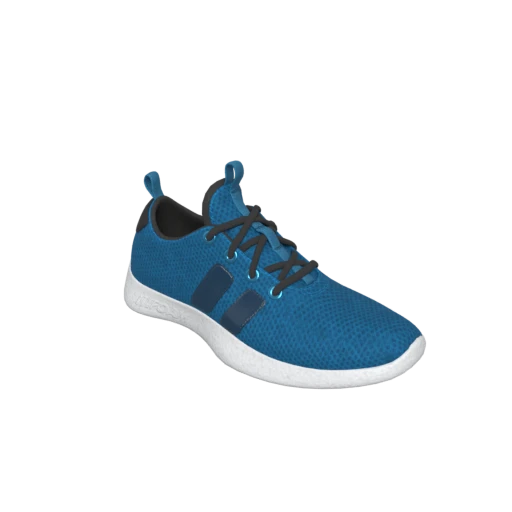
Shoe 3D model preview
Try with a sample modelShoeShoe by Polyforge · CC0 1.0 Universal

Sneaker with PBR materials and textures — ideal for testing optimization with mesh decimation and texture compression.

$ mesh_decimation

Reduce polygon count while preserving visual quality using meshoptimizer's simplification algorithm.

$ draco_compression

Apply KHR_draco_mesh_compression to shrink geometry data by up to 90% with negligible visual difference.

$ geometry_quantization

Reduce vertex data precision from 32-bit to 12-16 bit for significantly smaller files with no visible quality loss.

$ scene_flattening

Merge scene hierarchy into a flat structure for fewer draw calls and better rendering performance in web viewers.

$ texture_optimization

Compress, resize, or strip textures. Supports JPEG, WebP, and KTX2 GPU compression for maximum file size reduction.

$ instant_comparison

Interactive before/after viewer with a draggable slider. See exactly how optimization affects your model.

HOW IT WORKS

How to Optimize 3D Files

Optimize any 3D file in three simple steps

01

Upload your file

Drag and drop or browse to select a 3D file in any supported format. Files stay in your browser.

02

Review & fine-tune

Your file is automatically optimized with visually lossless compression. Compare before and after side by side, then adjust quality, Draco, and texture settings to dial in the result.

03

Download the result

Download your optimized model in GLB or convert to any other supported format.

SUPPORTED FORMATS
$ Input Formats
GLBGLTFOBJFBXSTLPLYUSDZ3DSDAESTP3MF
$ Output Formats
GLBGLTFOBJFBXSTLPLYUSDZ

Why Optimize 3D Files?

3D files can grow unexpectedly large — especially when they contain high-resolution textures, dense meshes, or redundant data. A single untouched scan or CAD export can easily exceed 50 MB, making it impractical for web delivery, AR experiences, or real-time applications.

File size directly impacts user experience. Larger files mean longer load times, higher bandwidth costs, and poor performance on mobile devices. For web-based 3D viewers and AR applications, keeping file sizes small is essential for maintaining smooth, responsive interactions.

How Draco Compression Works

Draco is an open-source compression library developed by Google specifically for 3D meshes and point clouds. It encodes vertex positions, normals, and UV coordinates into a compact binary format using the KHR_draco_mesh_compression glTF extension. Draco uses quantization to reduce precision (11 bits by default), which is technically lossy at the data level but produces no visible difference in the rendered output.

Draco compression alone typically reduces GLB file size by 60–90%. Combined with mesh decimation, total reductions of 95% or more are common — transforming a 50 MB model into a 2 MB file that looks virtually identical.

Mesh Decimation for Polygon Reduction

Mesh decimation (also called polygon reduction or simplification) intelligently removes vertices and triangles that contribute least to the visual silhouette. Polyforge uses meshoptimizer’s simplification algorithm, which preserves topology, UV seams, and material boundaries while reducing polygon count.

This technique is essential for preparing high-poly scans, photogrammetry captures, and CAD exports for real-time rendering. A 500K polygon scan can often be reduced to 50K polygons with no perceptible quality loss at typical viewing distances.

Texture Compression and Optimization

Textures often account for 80–90% of a 3D file’s total size. Polyforge offers multiple texture compression strategies: JPEG for broad compatibility, WebP for better compression with alpha support, and KTX2 (Basis Universal) for GPU-native compressed textures that stay compressed in VRAM.

You can also resize textures — halving resolution from 4096×4096 to 2048×2048 reduces texture data by 75% with minimal visible impact. For 3D printing workflows, stripping textures entirely removes all image data since slicers don’t use it.

Privacy-First Architecture

All processing happens entirely in your browser using WebAssembly. Your files are never uploaded to a server, ensuring complete privacy and eliminating upload wait times. The optimization runs in a background Web Worker thread, keeping the interface responsive even with large files.

Benefits of 3D File Optimization

  • Faster load times : Smaller files load faster in web viewers, AR apps, and game engines.
  • Lower bandwidth costs : Reduce hosting and CDN costs by serving smaller 3D assets.
  • Better mobile performance : Optimized models render smoothly on mobile GPUs with limited memory.
  • Preserved visual quality : Draco compression maintains full visual fidelity while significantly reducing file size.
  • Instant results : Client-side processing means no upload wait — optimization starts immediately.
  • AR-ready assets : Produce USDZ files optimized for Apple AR Quick Look and visionOS experiences.
FAQ

Does optimization reduce visual quality?

At 100% quality (the default), optimization removes redundant data and applies efficient encoding with no visible quality loss. Draco compression quantizes vertex data at high precision, which is technically lossy but visually indistinguishable. When you reduce the quality slider, mesh simplification removes some polygons, but the algorithm preserves the visual silhouette as much as possible.

What is Draco compression?

Draco is a compression library developed by Google that encodes 3D geometry data more efficiently. It's supported by all modern 3D viewers and engines. Draco compression alone can reduce GLB file size by 60-90% with no visual change.

Are my files uploaded to a server?

No. All processing happens entirely in your browser using WebAssembly. Your files never leave your device. This ensures complete privacy. Files up to 100 MB are supported, with practical limits depending on your device's available RAM.

What formats can I optimize?

You can upload files in GLB, GLTF, OBJ, FBX, STL, PLY, USDZ, 3DS, DAE, and STP/STEP formats. The optimizer converts your file to GLB internally, applies optimizations, and lets you download in any supported output format.

How much can file size be reduced?

Results vary depending on the input file. Typical reductions: Draco compression alone provides 60-90% reduction. Adding mesh simplification at 50% quality can achieve 95%+ total reduction. Files with redundant data (duplicate meshes, unused materials) see the biggest improvements from cleanup.

How do I know which preset to pick?

Choose based on where your model will be used. Web Delivery gives the smallest files for browsers and online viewers. 3D Printing strips unnecessary data for slicers. AR / Quick Look optimizes for Apple devices. Game Engine preserves fidelity since engines optimize on import. Lossless applies only reversible compression for archival.

How do I optimize a GLB file for the web?

Upload your GLB file, select the Web Delivery preset, and click Optimize. This applies Draco geometry compression, texture compression (WebP or KTX2), quantization, and scene flattening — all tuned for the fastest load times in browser-based 3D viewers like three.js, Babylon.js, and model-viewer.

Can I optimize FBX or OBJ files?

Yes. Upload any supported format (FBX, OBJ, STL, PLY, DAE, 3DS, STP, USDZ, GLTF, or GLB). The optimizer converts your file to GLB internally, applies all selected optimizations, and lets you export in any supported output format including back to FBX or OBJ.

What is KTX2 texture compression?

KTX2 is a GPU-compressed texture format based on Basis Universal. Unlike JPEG or WebP, KTX2 textures stay compressed in GPU memory (VRAM). A 4K JPEG texture uses about 90 MB of VRAM, while the same texture in KTX2 uses only about 22 MB. This dramatically improves rendering performance, especially on mobile devices.

How do I reduce a 3D file for AR Quick Look?

Use the AR / Quick Look preset. It applies mesh simplification, texture resizing (Apple recommends max 2048×2048), and scene flattening optimized for Apple’s AR Quick Look viewer on iOS and visionOS. The output can be exported as USDZ for direct use in Safari and iMessage.