Polyforge

$ optimize_for_print

Optimize 3D Files for 3D Printing

Reduce STL and 3MF file size, simplify mesh complexity, and remove unnecessary data. Ready for Cura, PrusaSlicer, BambuStudio, and Formlabs. No upload, no sign up. Files never leave your browser.

No upload required 100% free Print ready output
By Polyforge · Published Mar 17, 2026 · Updated Mar 28, 2026

Drop your 3D file here

GLB, GLTF, OBJ, FBX, STL, PLY, USDZ, 3DS, DAE, STP — all supported

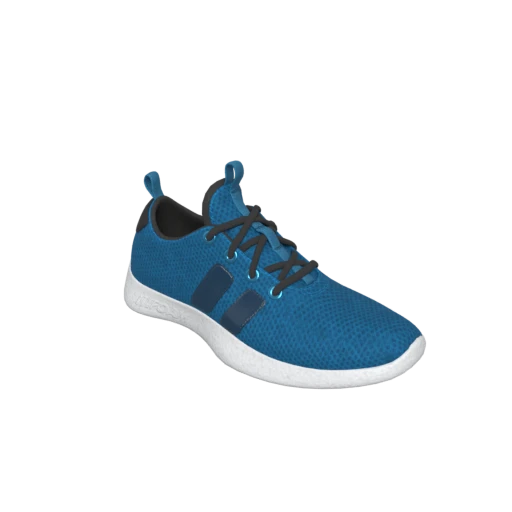
Shoe 3D model preview
Try with a sample modelShoeShoe by Polyforge · CC0 1.0 Universal

Sneaker with PBR materials and textures — ideal for testing optimization with mesh decimation and texture compression.

$ mesh_decimation_for_prints

Reduce polygon count while preserving print critical geometry. 3D scans and CAD exports often contain 10× more triangles than any FDM or SLA printer can resolve. Simplification cuts file size without affecting print quality.

$ strip_textures

Slicers like Cura, PrusaSlicer, and BambuStudio ignore textures entirely because they only use geometry. Toggle texture stripping to remove all image data and reduce file size by up to 80% or more.

$ flatten_scene_hierarchy

Merge multi part CAD assemblies into a single mesh. STEP and FBX files often contain dozens of separate bodies that need to be unified before printing as one piece.

$ file_size_reduction

Oversized STL files cause slicing timeouts and out of memory errors on your computer. A 100 MB file with millions of triangles can take several minutes to slice. Optimization brings file size down to what your printer can actually resolve.

$ any_format_to_stl_or_3mf

Upload OBJ, FBX, GLB, GLTF, STEP, DAE, 3DS, or any supported 3D format. Export as STL or 3MF, the two formats supported by every major slicer.

$ before_and_after_preview

Interactive before and after viewer with a draggable slider. Verify that decimation preserves critical dimensions and surface detail before committing to a print.

HOW IT WORKS

How to Optimize 3D Files for Printing

Prepare any 3D model for printing in three steps

01

Upload any 3D file

Drag and drop or browse to select a file in any supported format: STL, OBJ, FBX, STEP, GLB, and more. The 3D Printing preset activates automatically.

02

Review print readiness

Compare before and after side by side. Check that the polygon count fits your printer’s capability. Adjust the quality slider if you need more or less simplification.

03

Download as STL or 3MF

Export in the format your slicer needs. The scene is flattened and the file is ready to slice. Enable texture stripping for maximum size reduction.

SUPPORTED FORMATS
$ Input Formats
GLBGLTFOBJFBXSTLPLYUSDZ3DSDAESTP3MF
$ Print Output Formats
STL3MFPLY

Why Optimize 3D Files for Printing?

Repositories like Thingiverse, Printables, and MyMiniFactory host millions of models, and many are exported straight from CAD tools or photogrammetry software with no post processing. These raw exports often contain far more data than any printer needs: dense triangle meshes, embedded textures, multi body hierarchies, and metadata that slicers ignore entirely.

If you have ever downloaded a model and watched your slicer freeze or run out of memory trying to open it, the file probably has too many triangles. Roughly one in four STL files on popular model repositories contain mesh defects like non manifold edges or inverted normals, and oversized files with millions of unnecessary polygons are just as common. Forums like r/3Dprinting are full of threads about models that take minutes to slice or produce corrupted gcode because the source geometry was never cleaned up.

Your slicer converts the STL or 3MF into gcode before the printer ever sees it, so oversized meshes create problems at the slicing stage. A 100 MB STL with 2 million triangles can take several minutes to slice and may exhaust your computer’s available RAM in the process. Optimization reduces triangle count to what your printer can actually resolve, making the entire workflow faster and more reliable.

How Mesh Decimation Works for 3D Prints

Mesh decimation algorithms evaluate every vertex in a 3D mesh and assign it an error cost: how much the surface would visually change if that vertex were removed. The quadric error metric (QEM) is the industry standard. It computes a quadric matrix at each vertex that approximates the planes of all adjacent faces. Vertices with low quadric error contribute minimally to the surface shape and are safe to remove.

For 3D printing specifically, the relevant resolution limit is the printer’s layer height and nozzle diameter, not pixel density. A 0.4 mm nozzle FDM printer cannot reliably reproduce horizontal features smaller than about 0.8 mm (roughly twice the nozzle width), so any triangles modeling detail finer than that are invisible in the final print. This means polygon counts can often be reduced dramatically with zero impact on print quality.

Practical reduction targets depend on the source material. Photogrammetry scans are the most extreme case: a typical scan generates 500K to 2M triangles, but 10K to 25K is usually sufficient for FDM printing. CAD exports (STEP, FBX) benefit from 50 to 75% reduction. STL files from design software can often handle 75 to 90% reduction without losing any printable detail.

Polyforge uses the meshoptimizer simplification algorithm, which extends QEM with attribute aware decimation. It preserves UV seams, material boundaries, and hard edges during reduction, and handles non manifold geometry that is common in CAD exports. The algorithm runs in a Web Worker via WebAssembly, keeping the browser interface responsive during processing.

STL vs 3MF: Choosing the Right Print Format

STL has been the default 3D printing format since 1987, when Chuck Hull and 3D Systems introduced it alongside stereolithography. It stores only triangle geometry with no color, no materials, no units, and no metadata. Every slicer in existence can open an STL. Its limitations are well understood: binary STL encodes exactly 50 bytes per triangle, so file size scales linearly with polygon count, and there is no way to embed scale, orientation, or print settings.

3MF was created by the 3MF Consortium (founded in 2015 by Microsoft, HP, Autodesk, and others) specifically to replace STL. A 3MF file is a ZIP archive containing XML geometry, materials, color data, scale units, and slicer configuration metadata. Modern slicers like PrusaSlicer 2.0+, BambuStudio, Cura 5.0+, and OrcaSlicer can read and write 3MF with full fidelity. For multi color or multi material prints, 3MF is the only format that preserves per face color assignments.

For most single color FDM prints, STL is perfectly adequate and maximally compatible. Choose 3MF when you need to preserve scale units (avoids the "is this in mm or inches?" problem), embed multi color assignments, or share print settings alongside the geometry.

File Size Guidelines by Printer Type

FDM desktop printers (Bambu Lab, Prusa, Creality) have the tightest practical constraints because your slicer must process the entire mesh before the printer sees any gcode. Binary STL at 50 bytes per triangle means a 100 MB file contains 2 million triangles, which can take minutes to slice and may exhaust RAM on lower spec machines. Target under 50K triangles for simple objects, under 200K for high detail prints.

SLA and resin printers (Formlabs, Elegoo, Anycubic) tolerate larger files because their resolution is higher. A 25 μm XY resolution can justify denser meshes for fine jewelry or dental models. Files up to 500 MB are generally safe. Even so, files over 100 MB will noticeably slow slicing time in Chitubox or Lychee Slicer.

Metal DMLS and SLM printers used in industrial settings process extremely dense meshes to support complex internal structures and lattice geometries. Files up to 1 GB are common in professional workflows, and specialized slicer software (Materialise Magics, Autodesk Netfabb) handles the preprocessing. For these workflows, optimization focus shifts from polygon count to manifold watertightness and self intersection repair.

Privacy First Processing

All optimization happens entirely in your browser using WebAssembly. Your 3D files are never uploaded to a server. Files up to 100 MB are supported, with no wait time for server processing and complete privacy for proprietary CAD designs, medical models, or unreleased product geometry.

Benefits of Print Optimized Files

  • Faster slicing : Fewer triangles means slicers process the model in seconds instead of minutes.
  • Reliable transfers : Smaller files transfer to printer displays and SD cards without firmware errors.
  • Shorter print prep : Flattened scene hierarchy eliminates the manual step of merging bodies in Meshmixer.
  • Preserved print quality : Decimation targets the printer’s resolution limit, so no printable detail is lost.
  • Universal slicer support : STL and 3MF output works with Cura, PrusaSlicer, BambuStudio, OrcaSlicer, and more.
  • No wasted data : Texture stripping removes image data that slicers ignore, cutting file size by up to 80%.
FAQ

How much can I reduce my STL file size?

Results depend on the source. Photogrammetry scans often compress 90 to 95%, so a 200 MB scan can become under 10 MB with no visible loss in print quality. CAD exports with embedded textures see 70 to 80% reduction from texture stripping alone. Simple geometry files with already optimized meshes may only see 20 to 40% reduction.

Does reducing polygons affect print quality?

Not at practical reduction levels for FDM printing. A 0.4 mm nozzle cannot reliably reproduce horizontal features smaller than about 0.8 mm, so triangles modeling finer detail than that are invisible in the final print. The decimation algorithm preserves the geometry that matters for your printer’s resolution. For SLA or resin printing with 25 μm resolution, use a more conservative quality setting.

Should I use STL or 3MF?

STL for maximum compatibility with any slicer or printer. 3MF when you need to preserve exact scale units (avoids mm vs inch ambiguity), embed multi color face assignments, or share slicer configuration alongside the model. Both formats are output by Polyforge without any quality loss.

Why strip textures for 3D printing?

Slicers like Cura, PrusaSlicer, BambuStudio, and OrcaSlicer read only geometry data and ignore all texture images entirely. Textures can account for 80 to 90% of a file’s size, so stripping them reduces the file dramatically with zero impact on the printed result. The only exception is color 3D printing using multi filament systems, where vertex colors (not image textures) encode the color data.

Can I optimize STEP or FBX files for printing?

Yes. Upload STEP, FBX, OBJ, DAE, or any of the 11 supported input formats. Polyforge converts the file to an internal representation, applies the 3D Printing preset (flatten hierarchy, strip textures, decimate), and exports as STL or 3MF. STEP files from CAD software are a particularly common use case because they often contain multi body assemblies that need to be merged into a single printable mesh.

What polygon count should I target?

For FDM printing: under 50K triangles for simple objects, 50K to 200K for high detail prints. For SLA or resin: 100K to 500K is typically appropriate. For metal DMLS: polygon count matters less than watertight manifold geometry. The 3D Printing preset starts at 100% quality (no decimation). Reduce the quality slider until the preview looks acceptable, then export.

Are my files uploaded to a server?

No. All processing runs entirely in your browser via WebAssembly. Your files never leave your device. This is especially important for proprietary CAD geometry, medical models, or unreleased product designs, which remain on your machine throughout the entire optimization process.

Is this a replacement for Meshmixer?

Polyforge handles the file size and format compatibility problems that Meshmixer solves for 3D printing (mesh simplification, scene flattening, format conversion) without requiring a desktop install. It does not replace Meshmixer’s sculpting, repair, and support generation tools. For a file that needs both optimization and mesh repair, run Meshmixer first, then optimize with Polyforge before printing.

What’s the maximum file size I can optimize?

The tool supports files up to 100 MB. All processing happens in your browser, so practical performance also depends on your device’s RAM. Files near the limit work reliably on modern desktops with 8 GB+ RAM. If your file is too large, try splitting the model into parts first.

Which slicers are compatible with the output?

STL output is compatible with every slicer: Cura, PrusaSlicer, BambuStudio, OrcaSlicer, Chitubox, Lychee Slicer, Simplify3D, IdeaMaker, and any other FDM or resin slicer. 3MF output is supported by Cura 5.0+, PrusaSlicer 2.0+, BambuStudio, OrcaSlicer, and Materialise Magics. Older slicers that predate 3MF support should use STL.